> ## Documentation Index
> Fetch the complete documentation index at: https://docs-staging-fix-docs-5546-update-db-search.mintlify.site/llms.txt
> Use this file to discover all available pages before exploring further.

> Configure an update policy form using Forms for Actions

# Use Cases: Configure an update policy form using Forms

<Card title="Before you start">
  1. Create a [Machine-to-Machine Application](/docs/get-started/auth0-overview/create-applications/machine-to-machine-apps) with the following scopes enabled:

  * `read:users`
  * `update:users`
  * `create:users`
  * `read:users_app_metadata`
  * `update:users_app_metadata`
  * `create:users_app_metadata`

  2. Add a [Vault connection](/docs/customize/forms/vault) using the M2M application credentials.
</Card>

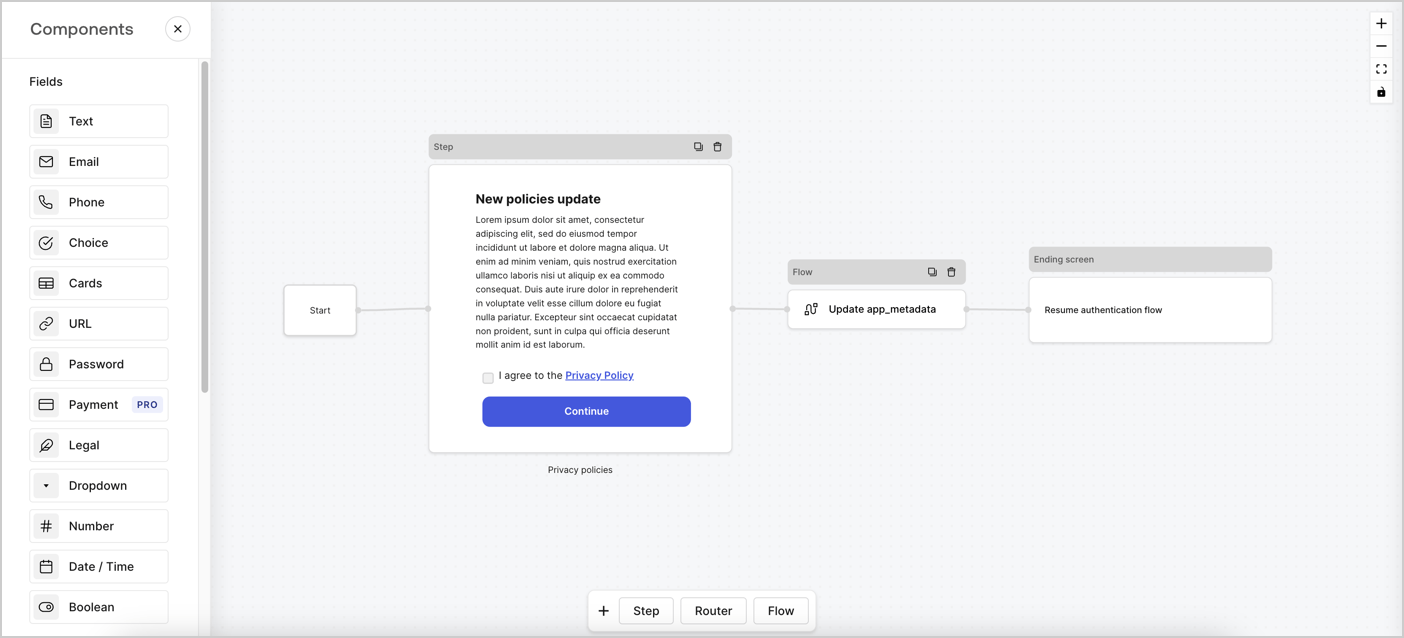
Forms for Actions allows you to create custom privacy policies flows and store the consent under the `app_metadata` object.
<Frame>
  <img src="https://mintcdn.com/docs-staging-fix-docs-5546-update-db-search/GQRCDLZWScWmvnb1/docs/images/cdy7uua7fh8z/6i68dMvHDTijfRmSgN1x8Q/ad900e7d4c0fb34645921435472b8684/privavy-policy-form.png?fit=max&auto=format&n=GQRCDLZWScWmvnb1&q=85&s=ceb561e357965fa166203ca9d8c64555" alt="Dashboard > Actions > Forms > Privacy policy use case" data-og-width="1404" width="1404" data-og-height="638" height="638" data-path="docs/images/cdy7uua7fh8z/6i68dMvHDTijfRmSgN1x8Q/ad900e7d4c0fb34645921435472b8684/privavy-policy-form.png" data-optimize="true" data-opv="3" srcset="https://mintcdn.com/docs-staging-fix-docs-5546-update-db-search/GQRCDLZWScWmvnb1/docs/images/cdy7uua7fh8z/6i68dMvHDTijfRmSgN1x8Q/ad900e7d4c0fb34645921435472b8684/privavy-policy-form.png?w=280&fit=max&auto=format&n=GQRCDLZWScWmvnb1&q=85&s=a2af39b29433387043279c3a4f4973e3 280w, https://mintcdn.com/docs-staging-fix-docs-5546-update-db-search/GQRCDLZWScWmvnb1/docs/images/cdy7uua7fh8z/6i68dMvHDTijfRmSgN1x8Q/ad900e7d4c0fb34645921435472b8684/privavy-policy-form.png?w=560&fit=max&auto=format&n=GQRCDLZWScWmvnb1&q=85&s=7b0bb1e26a79c70483a530c9dc2d5c9a 560w, https://mintcdn.com/docs-staging-fix-docs-5546-update-db-search/GQRCDLZWScWmvnb1/docs/images/cdy7uua7fh8z/6i68dMvHDTijfRmSgN1x8Q/ad900e7d4c0fb34645921435472b8684/privavy-policy-form.png?w=840&fit=max&auto=format&n=GQRCDLZWScWmvnb1&q=85&s=ea3bab6cea84c0fd3900af61b67609f6 840w, https://mintcdn.com/docs-staging-fix-docs-5546-update-db-search/GQRCDLZWScWmvnb1/docs/images/cdy7uua7fh8z/6i68dMvHDTijfRmSgN1x8Q/ad900e7d4c0fb34645921435472b8684/privavy-policy-form.png?w=1100&fit=max&auto=format&n=GQRCDLZWScWmvnb1&q=85&s=346e74ca2fa6b100c8b5f07274b4a7dd 1100w, https://mintcdn.com/docs-staging-fix-docs-5546-update-db-search/GQRCDLZWScWmvnb1/docs/images/cdy7uua7fh8z/6i68dMvHDTijfRmSgN1x8Q/ad900e7d4c0fb34645921435472b8684/privavy-policy-form.png?w=1650&fit=max&auto=format&n=GQRCDLZWScWmvnb1&q=85&s=0e645279e658b1bedbce0c5b0e41305f 1650w, https://mintcdn.com/docs-staging-fix-docs-5546-update-db-search/GQRCDLZWScWmvnb1/docs/images/cdy7uua7fh8z/6i68dMvHDTijfRmSgN1x8Q/ad900e7d4c0fb34645921435472b8684/privavy-policy-form.png?w=2500&fit=max&auto=format&n=GQRCDLZWScWmvnb1&q=85&s=36c4d4e8d3d89d7e186d693c033b87b2 2500w" />
</Frame>

The sections below outline how you can create an Update Policy form using nodes and flows, along with steps for adding your form to a [Post Login](/docs/customize/actions/explore-triggers/signup-and-login-triggers/login-trigger) Action.

## Create a form from scratch

Follow these steps to create a form to gather information:

1. Open the Form editor by selecting **Auth0 Dashboard > Actions > Forms.**
2. Select **Create Form** > **Start from scratch**.

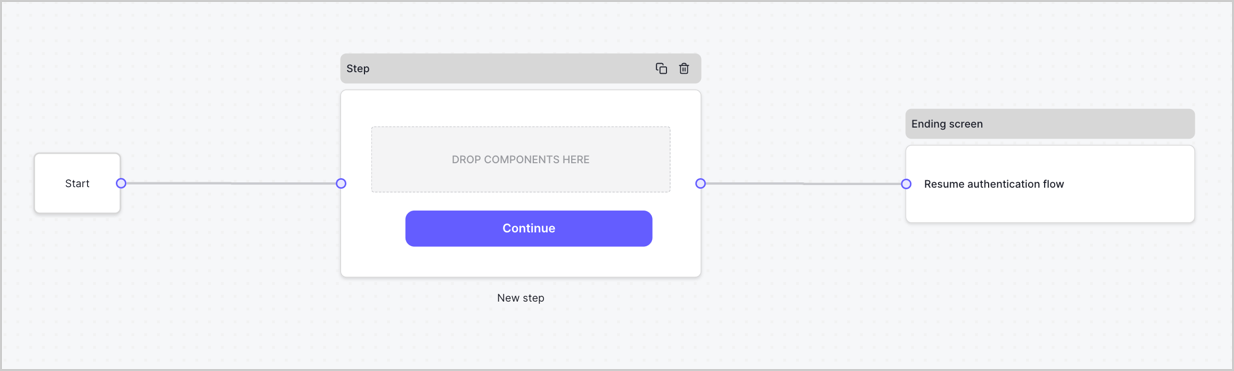
By default, a new form contains a Start node, a Step node, and an Ending screen node.
<Frame>
  <img src="https://mintcdn.com/docs-staging-fix-docs-5546-update-db-search/t9YvReZ13iZMAZ3C/docs/images/cdy7uua7fh8z/2TZ9jSjgEcARFpULI6hz4R/a4319a1bd482f2ee5cc23100fdb2f42c/New-form-Forms-for-action-use-case.png?fit=max&auto=format&n=t9YvReZ13iZMAZ3C&q=85&s=c2c1ae17f4e7101ba5616fc290411949" alt="Dashboard > Forms > Use Cases > Form" data-og-width="1234" width="1234" data-og-height="371" height="371" data-path="docs/images/cdy7uua7fh8z/2TZ9jSjgEcARFpULI6hz4R/a4319a1bd482f2ee5cc23100fdb2f42c/New-form-Forms-for-action-use-case.png" data-optimize="true" data-opv="3" srcset="https://mintcdn.com/docs-staging-fix-docs-5546-update-db-search/t9YvReZ13iZMAZ3C/docs/images/cdy7uua7fh8z/2TZ9jSjgEcARFpULI6hz4R/a4319a1bd482f2ee5cc23100fdb2f42c/New-form-Forms-for-action-use-case.png?w=280&fit=max&auto=format&n=t9YvReZ13iZMAZ3C&q=85&s=90da64abcd5021bee47f20f036d7ec2c 280w, https://mintcdn.com/docs-staging-fix-docs-5546-update-db-search/t9YvReZ13iZMAZ3C/docs/images/cdy7uua7fh8z/2TZ9jSjgEcARFpULI6hz4R/a4319a1bd482f2ee5cc23100fdb2f42c/New-form-Forms-for-action-use-case.png?w=560&fit=max&auto=format&n=t9YvReZ13iZMAZ3C&q=85&s=9d420a7139300d8aed224076f4fac792 560w, https://mintcdn.com/docs-staging-fix-docs-5546-update-db-search/t9YvReZ13iZMAZ3C/docs/images/cdy7uua7fh8z/2TZ9jSjgEcARFpULI6hz4R/a4319a1bd482f2ee5cc23100fdb2f42c/New-form-Forms-for-action-use-case.png?w=840&fit=max&auto=format&n=t9YvReZ13iZMAZ3C&q=85&s=533e7cd9d48699a3b6f044ab2bdbdb1d 840w, https://mintcdn.com/docs-staging-fix-docs-5546-update-db-search/t9YvReZ13iZMAZ3C/docs/images/cdy7uua7fh8z/2TZ9jSjgEcARFpULI6hz4R/a4319a1bd482f2ee5cc23100fdb2f42c/New-form-Forms-for-action-use-case.png?w=1100&fit=max&auto=format&n=t9YvReZ13iZMAZ3C&q=85&s=b984cb68a2daf2bdf268fe8191482b5e 1100w, https://mintcdn.com/docs-staging-fix-docs-5546-update-db-search/t9YvReZ13iZMAZ3C/docs/images/cdy7uua7fh8z/2TZ9jSjgEcARFpULI6hz4R/a4319a1bd482f2ee5cc23100fdb2f42c/New-form-Forms-for-action-use-case.png?w=1650&fit=max&auto=format&n=t9YvReZ13iZMAZ3C&q=85&s=d3796172a3be49f26abf0e84491e320e 1650w, https://mintcdn.com/docs-staging-fix-docs-5546-update-db-search/t9YvReZ13iZMAZ3C/docs/images/cdy7uua7fh8z/2TZ9jSjgEcARFpULI6hz4R/a4319a1bd482f2ee5cc23100fdb2f42c/New-form-Forms-for-action-use-case.png?w=2500&fit=max&auto=format&n=t9YvReZ13iZMAZ3C&q=85&s=d3e52004fb54e876ed26ca1e79600022 2500w" />
</Frame>

### Configure the Step node

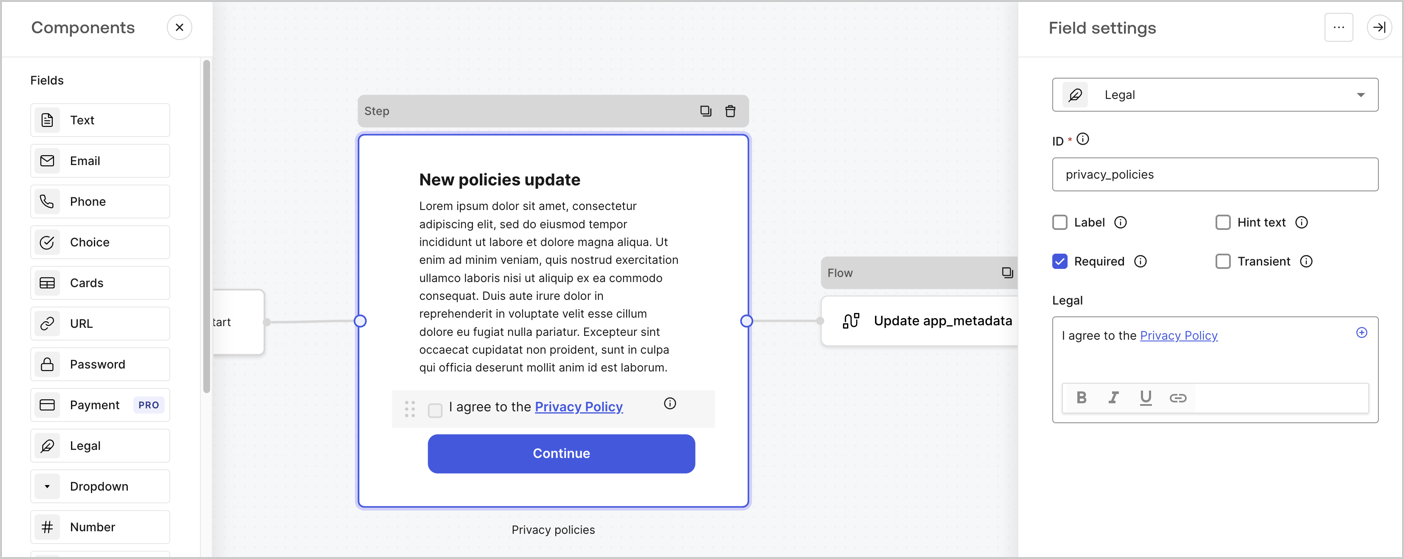
The Step node is the graphical interface visible to users. Add [Fields](/docs/customize/forms/nodes-and-components) to the Step node to collect the new agreement acceptance value by following these steps:

1. Drag a **Rich text** field from the **Components menu** into the **Step** node.

   * **Rich text**: Enter a description of your privacy policies updates.
   * Select **Save**.
2. Drag a **Legal** field into the **Step** node.

   * **ID**: Enter `privacy_policies`.
   * **Required**: Enable the checkbox.
   * **Legal**: Enter `I agree to the Privacy Policy`.
   * Select **Save**.
3. Select **Publish** to save.
<Frame>
  <img src="https://mintcdn.com/docs-staging-fix-docs-5546-update-db-search/ZpefpeFKNNxhegA4/docs/images/cdy7uua7fh8z/59zFFjQjAnjogkc2QGIqqJ/0ad66b1b636544122aa4e65968b76c2c/privacy-policy-step-node.png?fit=max&auto=format&n=ZpefpeFKNNxhegA4&q=85&s=36c40c3dc621506318175b21404e6fbf" alt="Dashboard > Actions > Forms > Use case privacy policy step node" data-og-width="1404" width="1404" data-og-height="559" height="559" data-path="docs/images/cdy7uua7fh8z/59zFFjQjAnjogkc2QGIqqJ/0ad66b1b636544122aa4e65968b76c2c/privacy-policy-step-node.png" data-optimize="true" data-opv="3" srcset="https://mintcdn.com/docs-staging-fix-docs-5546-update-db-search/ZpefpeFKNNxhegA4/docs/images/cdy7uua7fh8z/59zFFjQjAnjogkc2QGIqqJ/0ad66b1b636544122aa4e65968b76c2c/privacy-policy-step-node.png?w=280&fit=max&auto=format&n=ZpefpeFKNNxhegA4&q=85&s=7e040ac79dbc1323e8ff11fd56bcc33c 280w, https://mintcdn.com/docs-staging-fix-docs-5546-update-db-search/ZpefpeFKNNxhegA4/docs/images/cdy7uua7fh8z/59zFFjQjAnjogkc2QGIqqJ/0ad66b1b636544122aa4e65968b76c2c/privacy-policy-step-node.png?w=560&fit=max&auto=format&n=ZpefpeFKNNxhegA4&q=85&s=9b4bfa1467354135f75cafa6c732d041 560w, https://mintcdn.com/docs-staging-fix-docs-5546-update-db-search/ZpefpeFKNNxhegA4/docs/images/cdy7uua7fh8z/59zFFjQjAnjogkc2QGIqqJ/0ad66b1b636544122aa4e65968b76c2c/privacy-policy-step-node.png?w=840&fit=max&auto=format&n=ZpefpeFKNNxhegA4&q=85&s=55ea77f10d41167e83c015714ae43dc0 840w, https://mintcdn.com/docs-staging-fix-docs-5546-update-db-search/ZpefpeFKNNxhegA4/docs/images/cdy7uua7fh8z/59zFFjQjAnjogkc2QGIqqJ/0ad66b1b636544122aa4e65968b76c2c/privacy-policy-step-node.png?w=1100&fit=max&auto=format&n=ZpefpeFKNNxhegA4&q=85&s=4936fa5b99b95ef54a9bf8fb7408e915 1100w, https://mintcdn.com/docs-staging-fix-docs-5546-update-db-search/ZpefpeFKNNxhegA4/docs/images/cdy7uua7fh8z/59zFFjQjAnjogkc2QGIqqJ/0ad66b1b636544122aa4e65968b76c2c/privacy-policy-step-node.png?w=1650&fit=max&auto=format&n=ZpefpeFKNNxhegA4&q=85&s=f28f42f05ac8b376962f6af5d5f6bc2f 1650w, https://mintcdn.com/docs-staging-fix-docs-5546-update-db-search/ZpefpeFKNNxhegA4/docs/images/cdy7uua7fh8z/59zFFjQjAnjogkc2QGIqqJ/0ad66b1b636544122aa4e65968b76c2c/privacy-policy-step-node.png?w=2500&fit=max&auto=format&n=ZpefpeFKNNxhegA4&q=85&s=c8d9d979468a2b6b92bbad95b26d2428 2500w" />
</Frame>

### Configure the Flow node

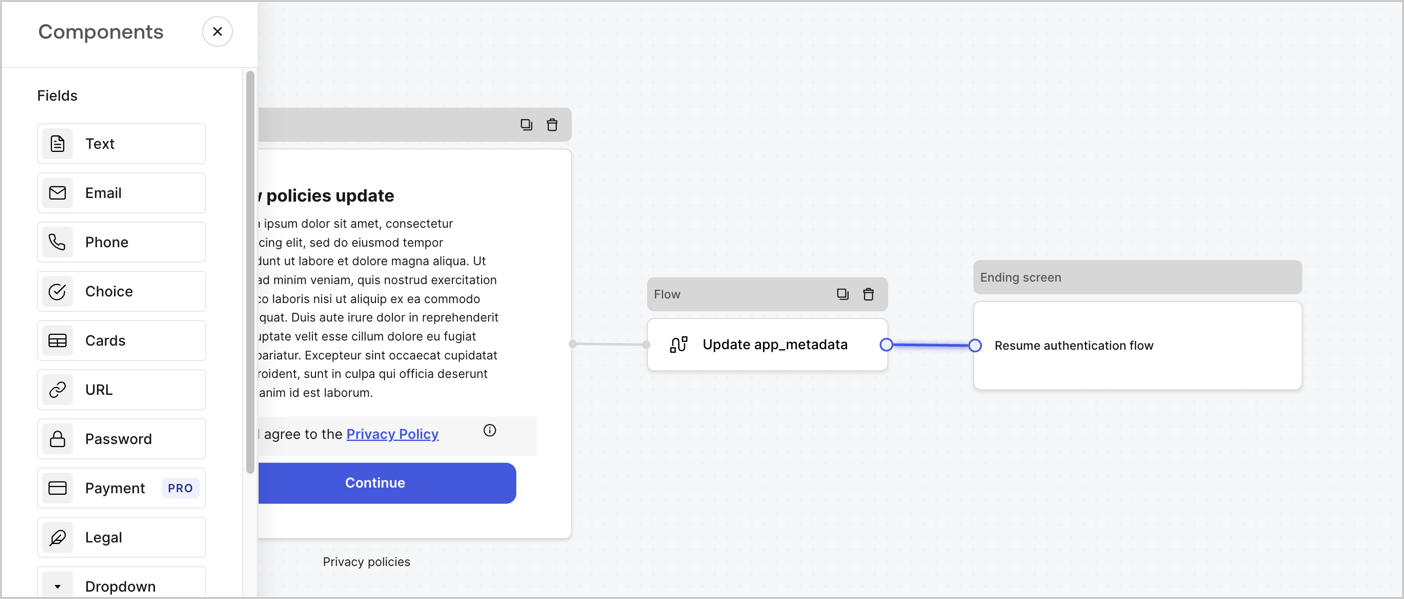
Add a **Flow** node after the **Step** node to update the `app_metadata` and resume the authentication flow by following these steps:

1. Select **Flow** from the bottom of the Form editor.
2. Remove the existing link between the **Step** and **Ending Screen** nodes.
3. Select the new **Flow** > **Click to add a flow** > **Create a new flow.**

   * Enter `Update app_metadata` in the **Name** field.
   * Select **Create**.
   * Select **Save**.
4. Link the **Flow** node to the **Step** and **Ending Screen** nodes as pictured below.
5. Select **Publish** to save.
<Frame>
  <img src="https://mintcdn.com/docs-staging-fix-docs-5546-update-db-search/GQRCDLZWScWmvnb1/docs/images/cdy7uua7fh8z/6YIkzm7SrpM9LW76AXuRzh/353c518fe82bbaa440836da1d83596d6/link-policies.png?fit=max&auto=format&n=GQRCDLZWScWmvnb1&q=85&s=13636d2de9029866b73b6401e8eeddd6" alt="Dashboard > Actions > Forms > Form" data-og-width="1404" width="1404" data-og-height="599" height="599" data-path="docs/images/cdy7uua7fh8z/6YIkzm7SrpM9LW76AXuRzh/353c518fe82bbaa440836da1d83596d6/link-policies.png" data-optimize="true" data-opv="3" srcset="https://mintcdn.com/docs-staging-fix-docs-5546-update-db-search/GQRCDLZWScWmvnb1/docs/images/cdy7uua7fh8z/6YIkzm7SrpM9LW76AXuRzh/353c518fe82bbaa440836da1d83596d6/link-policies.png?w=280&fit=max&auto=format&n=GQRCDLZWScWmvnb1&q=85&s=dc5992b71458e38ebb298c0d70faa84a 280w, https://mintcdn.com/docs-staging-fix-docs-5546-update-db-search/GQRCDLZWScWmvnb1/docs/images/cdy7uua7fh8z/6YIkzm7SrpM9LW76AXuRzh/353c518fe82bbaa440836da1d83596d6/link-policies.png?w=560&fit=max&auto=format&n=GQRCDLZWScWmvnb1&q=85&s=c006edbb1b5640d8a4c4837550899d95 560w, https://mintcdn.com/docs-staging-fix-docs-5546-update-db-search/GQRCDLZWScWmvnb1/docs/images/cdy7uua7fh8z/6YIkzm7SrpM9LW76AXuRzh/353c518fe82bbaa440836da1d83596d6/link-policies.png?w=840&fit=max&auto=format&n=GQRCDLZWScWmvnb1&q=85&s=adc9e51a2acf5dd6a54e8435809cd067 840w, https://mintcdn.com/docs-staging-fix-docs-5546-update-db-search/GQRCDLZWScWmvnb1/docs/images/cdy7uua7fh8z/6YIkzm7SrpM9LW76AXuRzh/353c518fe82bbaa440836da1d83596d6/link-policies.png?w=1100&fit=max&auto=format&n=GQRCDLZWScWmvnb1&q=85&s=8c136979047de4fa6305aac8e3d975ab 1100w, https://mintcdn.com/docs-staging-fix-docs-5546-update-db-search/GQRCDLZWScWmvnb1/docs/images/cdy7uua7fh8z/6YIkzm7SrpM9LW76AXuRzh/353c518fe82bbaa440836da1d83596d6/link-policies.png?w=1650&fit=max&auto=format&n=GQRCDLZWScWmvnb1&q=85&s=ef6ea4a8ef4931f7d608c707aee72777 1650w, https://mintcdn.com/docs-staging-fix-docs-5546-update-db-search/GQRCDLZWScWmvnb1/docs/images/cdy7uua7fh8z/6YIkzm7SrpM9LW76AXuRzh/353c518fe82bbaa440836da1d83596d6/link-policies.png?w=2500&fit=max&auto=format&n=GQRCDLZWScWmvnb1&q=85&s=7d570c2dcd3c187c890f3291ec893815 2500w" />
</Frame>

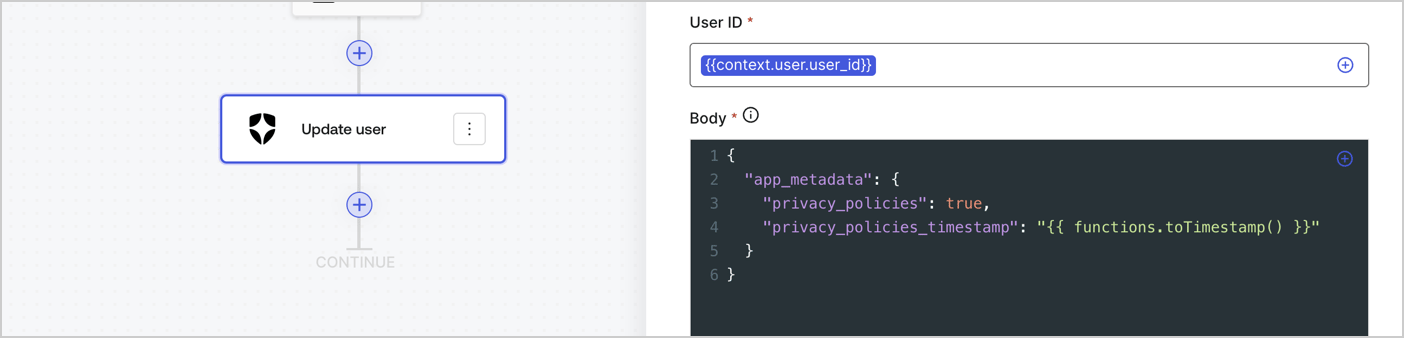
Add an Auth0 Update user action to the flow by following these steps:

1. Select the **Flow** **Update app\_metadata** > **Edit flow** to open the Flow editor in a new tab.
2. Below the StartAction, select the **+** icon to add an **Update user** action. Complete the fields below, then select **Save** to continue.

   * **Connection**: Select from the dropdown the Vault connection to your M2M application.

   * **User ID**: Enter `{{context.user.user_id}}`.

   * **Body**: Copy and paste the following code to update the app\_metadata with the privacy\_policies and privacy\_policies\_timestamp properties.

     ```text lines theme={null}
     {
       "app_metadata": {
         "privacy_policies": true,
         "privacy_policies_timestamp": "{{ functions.toTimestamp() }}"
       }
     }
     ```

   * Select **Save**.
3. Select **Publish** to save.
<Frame>
  <img src="https://mintcdn.com/docs-staging-fix-docs-5546-update-db-search/ktSCfTwitIYQ0MfS/docs/images/cdy7uua7fh8z/CvMNIwWrOUwaFW4X3G28p/1fb70ae57a20749d9ffaaba8dc0b7e26/update-user-privacy.png?fit=max&auto=format&n=ktSCfTwitIYQ0MfS&q=85&s=e57728e0c81e5ca669db95ad6def82b3" alt="Dashboard > Actions > Forms > User case privacy policy code" data-og-width="1404" width="1404" data-og-height="338" height="338" data-path="docs/images/cdy7uua7fh8z/CvMNIwWrOUwaFW4X3G28p/1fb70ae57a20749d9ffaaba8dc0b7e26/update-user-privacy.png" data-optimize="true" data-opv="3" srcset="https://mintcdn.com/docs-staging-fix-docs-5546-update-db-search/ktSCfTwitIYQ0MfS/docs/images/cdy7uua7fh8z/CvMNIwWrOUwaFW4X3G28p/1fb70ae57a20749d9ffaaba8dc0b7e26/update-user-privacy.png?w=280&fit=max&auto=format&n=ktSCfTwitIYQ0MfS&q=85&s=8541a106b5eb47a1c97d141af8faa17b 280w, https://mintcdn.com/docs-staging-fix-docs-5546-update-db-search/ktSCfTwitIYQ0MfS/docs/images/cdy7uua7fh8z/CvMNIwWrOUwaFW4X3G28p/1fb70ae57a20749d9ffaaba8dc0b7e26/update-user-privacy.png?w=560&fit=max&auto=format&n=ktSCfTwitIYQ0MfS&q=85&s=1ceeb0cb6d24eb373d7e954ed6bef675 560w, https://mintcdn.com/docs-staging-fix-docs-5546-update-db-search/ktSCfTwitIYQ0MfS/docs/images/cdy7uua7fh8z/CvMNIwWrOUwaFW4X3G28p/1fb70ae57a20749d9ffaaba8dc0b7e26/update-user-privacy.png?w=840&fit=max&auto=format&n=ktSCfTwitIYQ0MfS&q=85&s=0c4b550f9d0b88fe5354f0996517cdda 840w, https://mintcdn.com/docs-staging-fix-docs-5546-update-db-search/ktSCfTwitIYQ0MfS/docs/images/cdy7uua7fh8z/CvMNIwWrOUwaFW4X3G28p/1fb70ae57a20749d9ffaaba8dc0b7e26/update-user-privacy.png?w=1100&fit=max&auto=format&n=ktSCfTwitIYQ0MfS&q=85&s=c77a1db9db629b91cd21f552604987a9 1100w, https://mintcdn.com/docs-staging-fix-docs-5546-update-db-search/ktSCfTwitIYQ0MfS/docs/images/cdy7uua7fh8z/CvMNIwWrOUwaFW4X3G28p/1fb70ae57a20749d9ffaaba8dc0b7e26/update-user-privacy.png?w=1650&fit=max&auto=format&n=ktSCfTwitIYQ0MfS&q=85&s=e8c1d146894f1e2af3753928f8fa56b4 1650w, https://mintcdn.com/docs-staging-fix-docs-5546-update-db-search/ktSCfTwitIYQ0MfS/docs/images/cdy7uua7fh8z/CvMNIwWrOUwaFW4X3G28p/1fb70ae57a20749d9ffaaba8dc0b7e26/update-user-privacy.png?w=2500&fit=max&auto=format&n=ktSCfTwitIYQ0MfS&q=85&s=bd1993b8ff7bc3f068e26fedd0aea797 2500w" />
</Frame>

<Callout icon="file-lines" color="#0EA5E9" iconType="regular">
  The flow **Update app\_metadata** adds a `privacy_policies true` value to the app`_metadata` object and also generates a timestamp with a [helper function.](/docs/customize/forms/variables)
</Callout>

## Retrieve the form render code

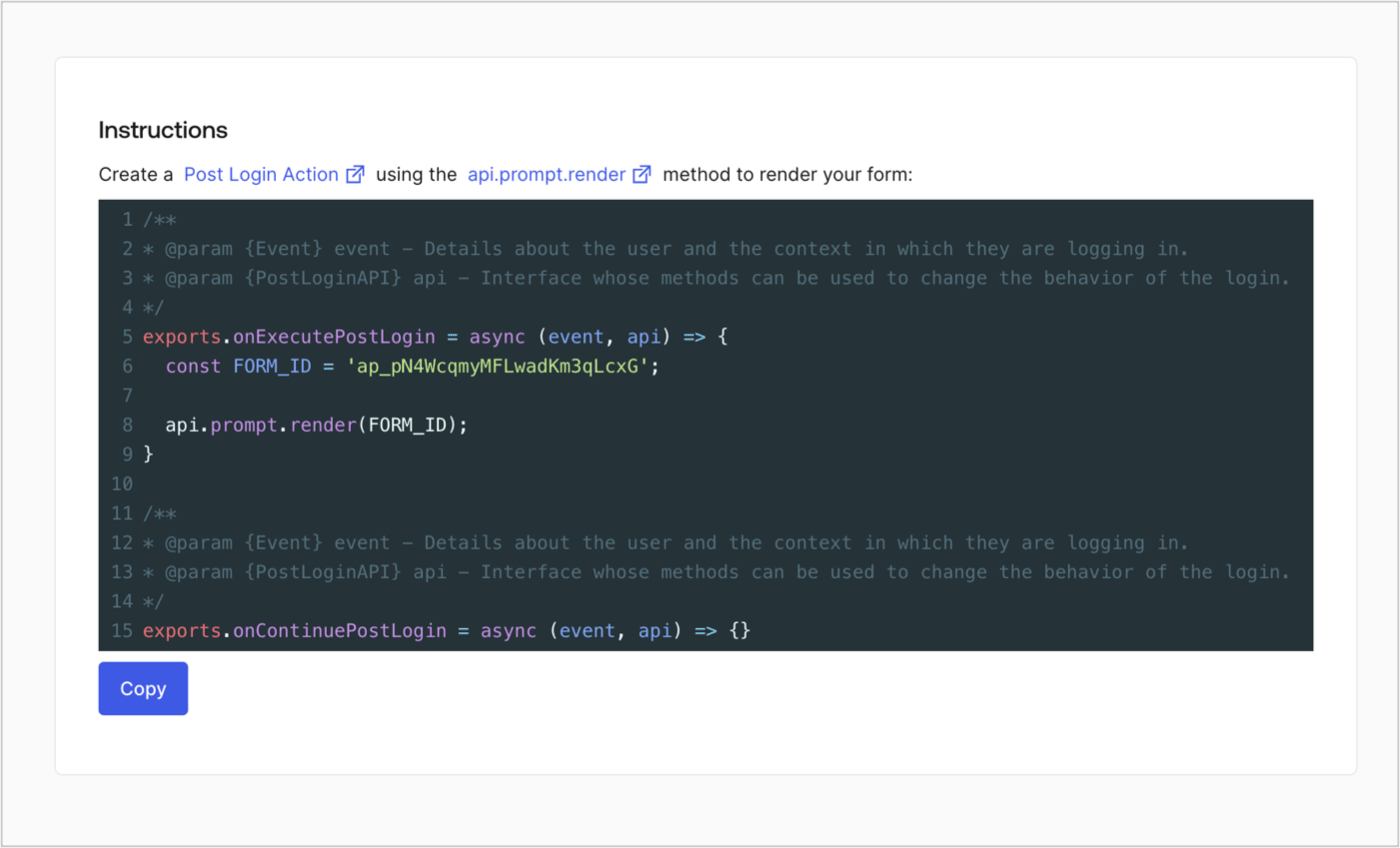
Retrieve your form render code to visually render the form with a custom Post Login Action by following these steps:

* From the Form editor, select **`<> Render`**.
* Select **Copy**.
<Frame>
  <img src="https://mintcdn.com/docs-staging-fix-docs-5546-update-db-search/PJ6jT6RrSeutZDYB/docs/images/cdy7uua7fh8z/2EIUzc539sq9lwoTKbjoJv/496a864c0fc44a782c9cadca119dbfb0/embed.png?fit=max&auto=format&n=PJ6jT6RrSeutZDYB&q=85&s=7d2955d3df37b190be9c5c67c8d3a8bc" alt="Dashboard > Actions > Forms > Form > Embed" data-og-width="1400" width="1400" data-og-height="848" height="848" data-path="docs/images/cdy7uua7fh8z/2EIUzc539sq9lwoTKbjoJv/496a864c0fc44a782c9cadca119dbfb0/embed.png" data-optimize="true" data-opv="3" srcset="https://mintcdn.com/docs-staging-fix-docs-5546-update-db-search/PJ6jT6RrSeutZDYB/docs/images/cdy7uua7fh8z/2EIUzc539sq9lwoTKbjoJv/496a864c0fc44a782c9cadca119dbfb0/embed.png?w=280&fit=max&auto=format&n=PJ6jT6RrSeutZDYB&q=85&s=b41953eea33e4171ddf631d7dbf90fb4 280w, https://mintcdn.com/docs-staging-fix-docs-5546-update-db-search/PJ6jT6RrSeutZDYB/docs/images/cdy7uua7fh8z/2EIUzc539sq9lwoTKbjoJv/496a864c0fc44a782c9cadca119dbfb0/embed.png?w=560&fit=max&auto=format&n=PJ6jT6RrSeutZDYB&q=85&s=26f7c4e9c2771682c9329d9e1fdd077f 560w, https://mintcdn.com/docs-staging-fix-docs-5546-update-db-search/PJ6jT6RrSeutZDYB/docs/images/cdy7uua7fh8z/2EIUzc539sq9lwoTKbjoJv/496a864c0fc44a782c9cadca119dbfb0/embed.png?w=840&fit=max&auto=format&n=PJ6jT6RrSeutZDYB&q=85&s=51bfd3b08f2615abdfce03d11bdf50a9 840w, https://mintcdn.com/docs-staging-fix-docs-5546-update-db-search/PJ6jT6RrSeutZDYB/docs/images/cdy7uua7fh8z/2EIUzc539sq9lwoTKbjoJv/496a864c0fc44a782c9cadca119dbfb0/embed.png?w=1100&fit=max&auto=format&n=PJ6jT6RrSeutZDYB&q=85&s=470118566ed49def3fa27a8f154001af 1100w, https://mintcdn.com/docs-staging-fix-docs-5546-update-db-search/PJ6jT6RrSeutZDYB/docs/images/cdy7uua7fh8z/2EIUzc539sq9lwoTKbjoJv/496a864c0fc44a782c9cadca119dbfb0/embed.png?w=1650&fit=max&auto=format&n=PJ6jT6RrSeutZDYB&q=85&s=e77c8d79c7db83736e0c6b336092bc07 1650w, https://mintcdn.com/docs-staging-fix-docs-5546-update-db-search/PJ6jT6RrSeutZDYB/docs/images/cdy7uua7fh8z/2EIUzc539sq9lwoTKbjoJv/496a864c0fc44a782c9cadca119dbfb0/embed.png?w=2500&fit=max&auto=format&n=PJ6jT6RrSeutZDYB&q=85&s=c979c9eb1be38be1fb6b93cf55b05b4b 2500w" />
</Frame>

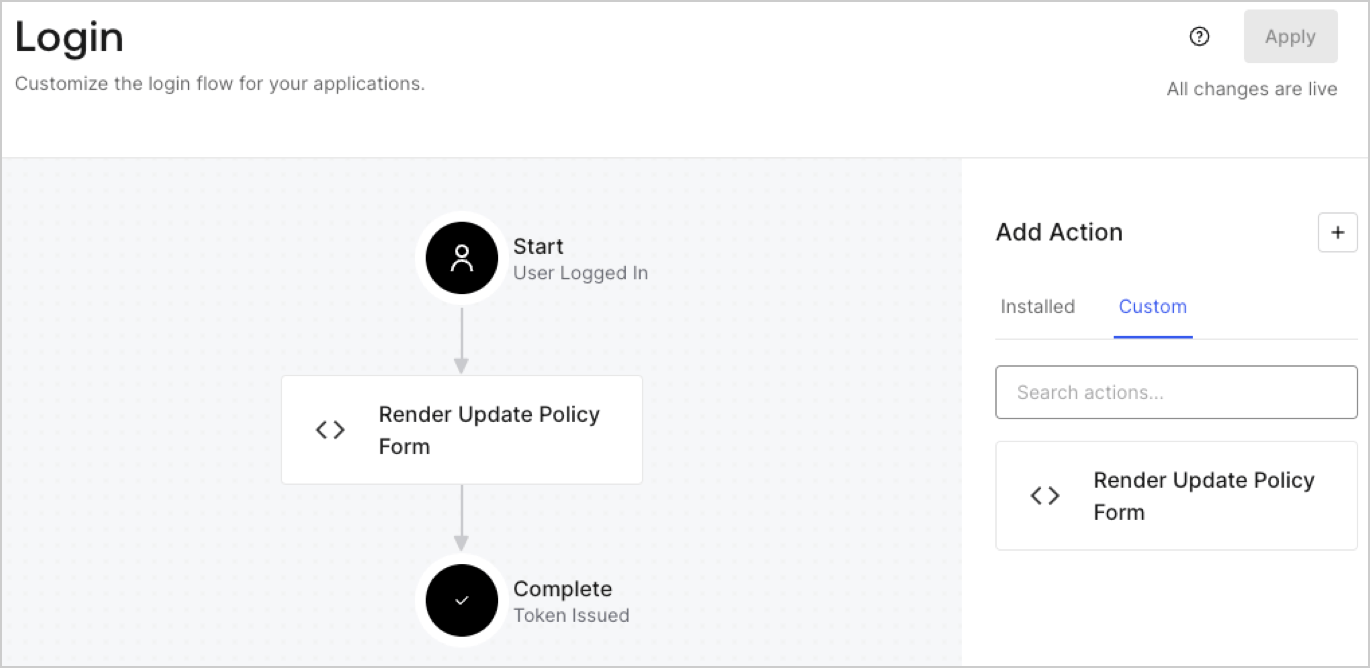
## Create a Post Login Action

Create a post-login Action to render your form by following these steps:

1. Navigate to **Auth0 Dashboard > Actions > Flows > Login.**
2. Select the **+** icon and Select **Build from scratch**:

   * **Name**: Enter `Render Update Policy Form`.
   * **Trigger**: Select `Login / Post Login`.
   * **Runtime**: Select the recommended version.
3. Select **Create**.

To configure the post-login Action:

1. Delete the existing code from the Code editor.
2. Paste the form render code into the Code editor.
3. Edit the code to define the conditional logic that will render the form.

   ```javascript lines theme={null}
   /**
   * @param {Event} event - Details about the user and the context in which they are logging in.
   * @param {PostLoginAPI} api - Interface whose methods can be used to change the behavior of the login.
   */
   exports.onExecutePostLogin = async (event, api) => {
     const FORM_ID = 'REPLACE_WITH_YOUR_FORM_ID';

     if (event.user.app_metadata.privacy_policies !== true) {
       api.prompt.render(FORM_ID);
     }
   }

   exports.onContinuePostLogin = async (event, api) => { }
   ```

   <Callout icon="file-lines" color="#0EA5E9" iconType="regular">
     The example code above will render the form when a user is missing the app metadata `privacy_policies` property.
   </Callout>
4. Select **Deploy.**
5. Drag and Drop the **Render Update Policy Form** Action to the **Login** flow.
   <Frame>
     <img src="https://mintcdn.com/docs-staging-fix-docs-5546-update-db-search/sVORoaGQ-jxplhx0/docs/images/cdy7uua7fh8z/5TOwDgevZsBqd7yZynUYWU/41ca909dc3007aed4f40ff794a05efa5/postlogin.png?fit=max&auto=format&n=sVORoaGQ-jxplhx0&q=85&s=45d4098224ea3931140e374390fcbd4c" alt="Dashboard > Forms > Use Case > Render update policy form login action" data-og-width="1370" width="1370" data-og-height="668" height="668" data-path="docs/images/cdy7uua7fh8z/5TOwDgevZsBqd7yZynUYWU/41ca909dc3007aed4f40ff794a05efa5/postlogin.png" data-optimize="true" data-opv="3" srcset="https://mintcdn.com/docs-staging-fix-docs-5546-update-db-search/sVORoaGQ-jxplhx0/docs/images/cdy7uua7fh8z/5TOwDgevZsBqd7yZynUYWU/41ca909dc3007aed4f40ff794a05efa5/postlogin.png?w=280&fit=max&auto=format&n=sVORoaGQ-jxplhx0&q=85&s=9760f8917edf2d1c757721221918efb0 280w, https://mintcdn.com/docs-staging-fix-docs-5546-update-db-search/sVORoaGQ-jxplhx0/docs/images/cdy7uua7fh8z/5TOwDgevZsBqd7yZynUYWU/41ca909dc3007aed4f40ff794a05efa5/postlogin.png?w=560&fit=max&auto=format&n=sVORoaGQ-jxplhx0&q=85&s=c3f4fefb0aaef08cf21670a07e088799 560w, https://mintcdn.com/docs-staging-fix-docs-5546-update-db-search/sVORoaGQ-jxplhx0/docs/images/cdy7uua7fh8z/5TOwDgevZsBqd7yZynUYWU/41ca909dc3007aed4f40ff794a05efa5/postlogin.png?w=840&fit=max&auto=format&n=sVORoaGQ-jxplhx0&q=85&s=1cb1b2b2e7d089c3fcb4361140c88568 840w, https://mintcdn.com/docs-staging-fix-docs-5546-update-db-search/sVORoaGQ-jxplhx0/docs/images/cdy7uua7fh8z/5TOwDgevZsBqd7yZynUYWU/41ca909dc3007aed4f40ff794a05efa5/postlogin.png?w=1100&fit=max&auto=format&n=sVORoaGQ-jxplhx0&q=85&s=0768137c5fbec9056127be4ffd318c2f 1100w, https://mintcdn.com/docs-staging-fix-docs-5546-update-db-search/sVORoaGQ-jxplhx0/docs/images/cdy7uua7fh8z/5TOwDgevZsBqd7yZynUYWU/41ca909dc3007aed4f40ff794a05efa5/postlogin.png?w=1650&fit=max&auto=format&n=sVORoaGQ-jxplhx0&q=85&s=40eeba71bdfe48615ab632ccd11270f3 1650w, https://mintcdn.com/docs-staging-fix-docs-5546-update-db-search/sVORoaGQ-jxplhx0/docs/images/cdy7uua7fh8z/5TOwDgevZsBqd7yZynUYWU/41ca909dc3007aed4f40ff794a05efa5/postlogin.png?w=2500&fit=max&auto=format&n=sVORoaGQ-jxplhx0&q=85&s=2f2e907f322372e82a20d57264abadf0 2500w" />
   </Frame>
6. Select **Apply.**

### Test implementation

Test the implementation by following these steps:

1. Log in with an existing user whose app`_metadata` attribute `privacy_policies` does not have a value.
2. The post-login Action in the Login flow will render the form and prompt for acceptance.
3. Select **Auth0 Dashboard > User Management > Users,** locate the user and verify that the `app_metadata` attribute `privacy_policies` contains a `true` value and a timestamp.
