> ## Documentation Index
> Fetch the complete documentation index at: https://docs-staging-fix-docs-5546-update-db-search.mintlify.site/llms.txt
> Use this file to discover all available pages before exploring further.

> Learn how to configure a progressive profile form using Forms for Actions

# Use Cases: Configure a progressive profile form using Forms

<Card title="Before you start">
  1. Create a [Machine-to-Machine Application](/docs/get-started/auth0-overview/create-applications/machine-to-machine-apps) with the following scopes enabled:

  * `read:users`
  * `update:users`
  * `create:users`
  * `read:users_app_metadata`
  * `update:users_app_metadata`
  * `create:users_app_metadata`

  2. Add a [Vault connection](/docs/customize/forms/vault) using the M2M application credentials.
</Card>

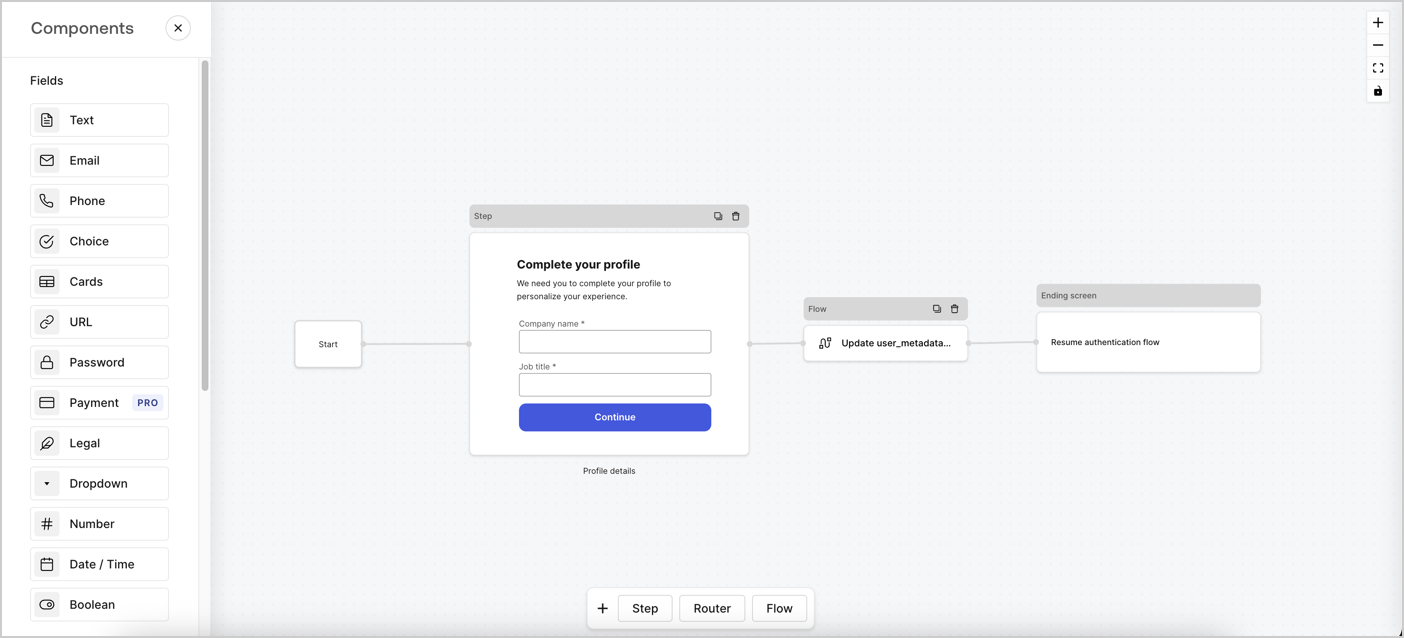
Forms for Actions allows you to create progressive profiling flows to decide when to prompt users to collect missing information, such as company name and job title, and store them as `user_metadata` attributes.
<Frame>
  <img src="https://mintcdn.com/docs-staging-fix-docs-5546-update-db-search/XLIcHOY0sxhwTYVi/docs/images/cdy7uua7fh8z/xUx9YmnHvnAqL19JvNtNP/60dae88f893d4ebe8e3523421e960596/Progressive-profle-overview.png?fit=max&auto=format&n=XLIcHOY0sxhwTYVi&q=85&s=7ccd256bdc901bb965884a0bba9d0423" alt="Dashboard > Actions > Forms > Form" data-og-width="1404" width="1404" data-og-height="638" height="638" data-path="docs/images/cdy7uua7fh8z/xUx9YmnHvnAqL19JvNtNP/60dae88f893d4ebe8e3523421e960596/Progressive-profle-overview.png" data-optimize="true" data-opv="3" srcset="https://mintcdn.com/docs-staging-fix-docs-5546-update-db-search/XLIcHOY0sxhwTYVi/docs/images/cdy7uua7fh8z/xUx9YmnHvnAqL19JvNtNP/60dae88f893d4ebe8e3523421e960596/Progressive-profle-overview.png?w=280&fit=max&auto=format&n=XLIcHOY0sxhwTYVi&q=85&s=99830375cf610e7c8c43660f1eafbaab 280w, https://mintcdn.com/docs-staging-fix-docs-5546-update-db-search/XLIcHOY0sxhwTYVi/docs/images/cdy7uua7fh8z/xUx9YmnHvnAqL19JvNtNP/60dae88f893d4ebe8e3523421e960596/Progressive-profle-overview.png?w=560&fit=max&auto=format&n=XLIcHOY0sxhwTYVi&q=85&s=492b333e377c15d856f48b099846bdde 560w, https://mintcdn.com/docs-staging-fix-docs-5546-update-db-search/XLIcHOY0sxhwTYVi/docs/images/cdy7uua7fh8z/xUx9YmnHvnAqL19JvNtNP/60dae88f893d4ebe8e3523421e960596/Progressive-profle-overview.png?w=840&fit=max&auto=format&n=XLIcHOY0sxhwTYVi&q=85&s=360bb869d536c46304c5562c11a80bdd 840w, https://mintcdn.com/docs-staging-fix-docs-5546-update-db-search/XLIcHOY0sxhwTYVi/docs/images/cdy7uua7fh8z/xUx9YmnHvnAqL19JvNtNP/60dae88f893d4ebe8e3523421e960596/Progressive-profle-overview.png?w=1100&fit=max&auto=format&n=XLIcHOY0sxhwTYVi&q=85&s=8558ef966658636d995ec04497e98027 1100w, https://mintcdn.com/docs-staging-fix-docs-5546-update-db-search/XLIcHOY0sxhwTYVi/docs/images/cdy7uua7fh8z/xUx9YmnHvnAqL19JvNtNP/60dae88f893d4ebe8e3523421e960596/Progressive-profle-overview.png?w=1650&fit=max&auto=format&n=XLIcHOY0sxhwTYVi&q=85&s=198760ddd43950588c5b32508d8543f4 1650w, https://mintcdn.com/docs-staging-fix-docs-5546-update-db-search/XLIcHOY0sxhwTYVi/docs/images/cdy7uua7fh8z/xUx9YmnHvnAqL19JvNtNP/60dae88f893d4ebe8e3523421e960596/Progressive-profle-overview.png?w=2500&fit=max&auto=format&n=XLIcHOY0sxhwTYVi&q=85&s=ae96c6a7b107b0cafb2b9f9164baedc9 2500w" />
</Frame>

The sections below outline how you can create a progressive profile form using nodes and flows, along with steps for adding your form to a [Post Login Action](/docs/customize/actions/explore-triggers/signup-and-login-triggers/login-trigger).

## Create a form from scratch

Follow these steps to create a form to gather information:

1. Open the Form editor by selecting **Auth0 Dashboard > Actions > Forms.**
2. Select **Create Form** > **Start from scratch**.

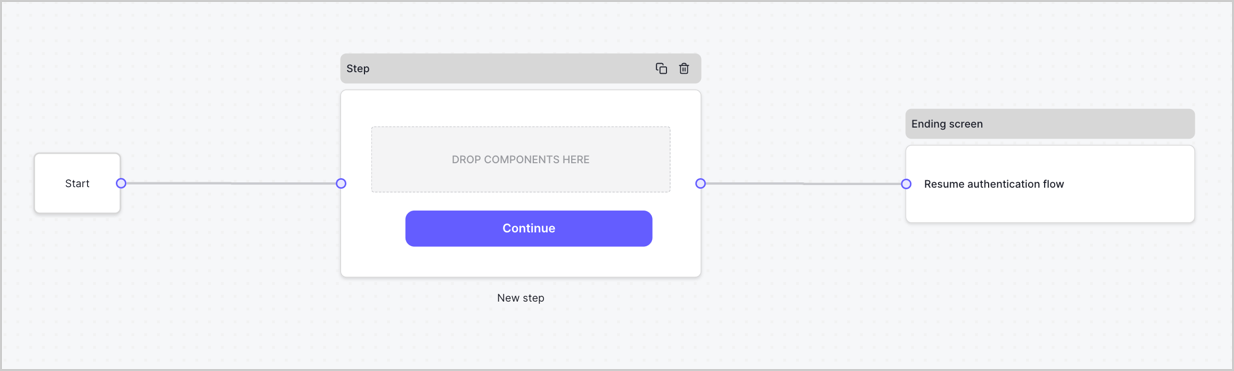
By default, a new form contains a Start node, a Step node, and an Ending screen node.
<Frame>
  <img src="https://mintcdn.com/docs-staging-fix-docs-5546-update-db-search/t9YvReZ13iZMAZ3C/docs/images/cdy7uua7fh8z/2TZ9jSjgEcARFpULI6hz4R/a4319a1bd482f2ee5cc23100fdb2f42c/New-form-Forms-for-action-use-case.png?fit=max&auto=format&n=t9YvReZ13iZMAZ3C&q=85&s=c2c1ae17f4e7101ba5616fc290411949" alt="Dashboard > Forms > Use Cases > Form" data-og-width="1234" width="1234" data-og-height="371" height="371" data-path="docs/images/cdy7uua7fh8z/2TZ9jSjgEcARFpULI6hz4R/a4319a1bd482f2ee5cc23100fdb2f42c/New-form-Forms-for-action-use-case.png" data-optimize="true" data-opv="3" srcset="https://mintcdn.com/docs-staging-fix-docs-5546-update-db-search/t9YvReZ13iZMAZ3C/docs/images/cdy7uua7fh8z/2TZ9jSjgEcARFpULI6hz4R/a4319a1bd482f2ee5cc23100fdb2f42c/New-form-Forms-for-action-use-case.png?w=280&fit=max&auto=format&n=t9YvReZ13iZMAZ3C&q=85&s=90da64abcd5021bee47f20f036d7ec2c 280w, https://mintcdn.com/docs-staging-fix-docs-5546-update-db-search/t9YvReZ13iZMAZ3C/docs/images/cdy7uua7fh8z/2TZ9jSjgEcARFpULI6hz4R/a4319a1bd482f2ee5cc23100fdb2f42c/New-form-Forms-for-action-use-case.png?w=560&fit=max&auto=format&n=t9YvReZ13iZMAZ3C&q=85&s=9d420a7139300d8aed224076f4fac792 560w, https://mintcdn.com/docs-staging-fix-docs-5546-update-db-search/t9YvReZ13iZMAZ3C/docs/images/cdy7uua7fh8z/2TZ9jSjgEcARFpULI6hz4R/a4319a1bd482f2ee5cc23100fdb2f42c/New-form-Forms-for-action-use-case.png?w=840&fit=max&auto=format&n=t9YvReZ13iZMAZ3C&q=85&s=533e7cd9d48699a3b6f044ab2bdbdb1d 840w, https://mintcdn.com/docs-staging-fix-docs-5546-update-db-search/t9YvReZ13iZMAZ3C/docs/images/cdy7uua7fh8z/2TZ9jSjgEcARFpULI6hz4R/a4319a1bd482f2ee5cc23100fdb2f42c/New-form-Forms-for-action-use-case.png?w=1100&fit=max&auto=format&n=t9YvReZ13iZMAZ3C&q=85&s=b984cb68a2daf2bdf268fe8191482b5e 1100w, https://mintcdn.com/docs-staging-fix-docs-5546-update-db-search/t9YvReZ13iZMAZ3C/docs/images/cdy7uua7fh8z/2TZ9jSjgEcARFpULI6hz4R/a4319a1bd482f2ee5cc23100fdb2f42c/New-form-Forms-for-action-use-case.png?w=1650&fit=max&auto=format&n=t9YvReZ13iZMAZ3C&q=85&s=d3796172a3be49f26abf0e84491e320e 1650w, https://mintcdn.com/docs-staging-fix-docs-5546-update-db-search/t9YvReZ13iZMAZ3C/docs/images/cdy7uua7fh8z/2TZ9jSjgEcARFpULI6hz4R/a4319a1bd482f2ee5cc23100fdb2f42c/New-form-Forms-for-action-use-case.png?w=2500&fit=max&auto=format&n=t9YvReZ13iZMAZ3C&q=85&s=d3e52004fb54e876ed26ca1e79600022 2500w" />
</Frame>

### Configure the Step node

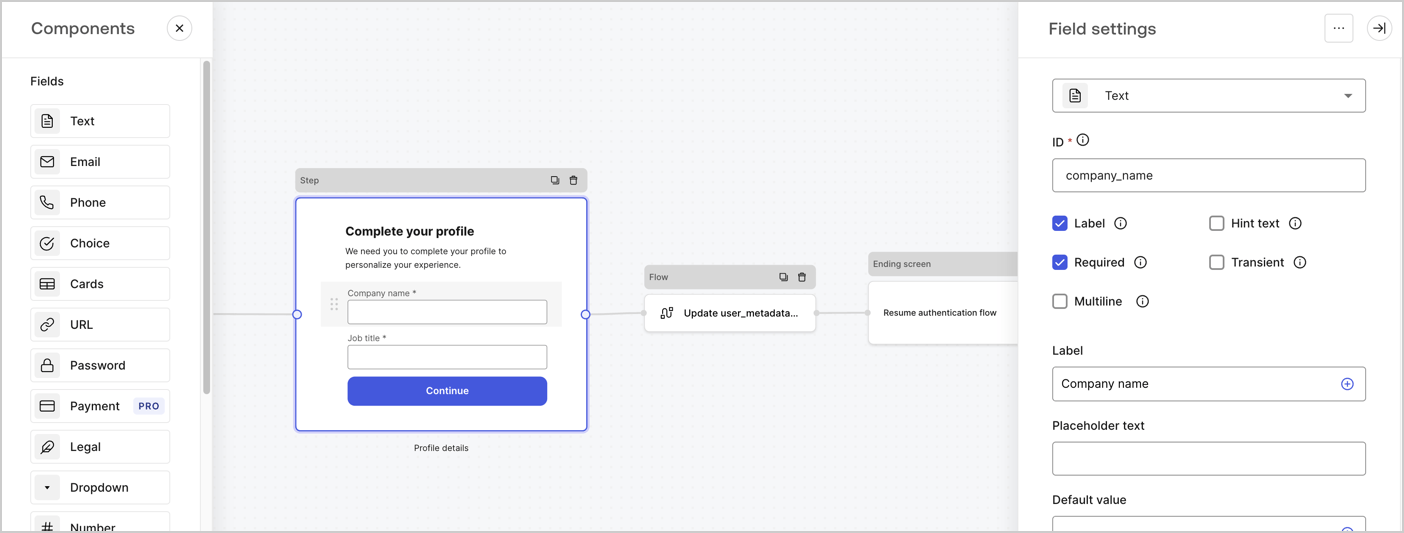
The Step node is the graphical interface visible to users. Add [Fields](/docs/customize/forms/nodes-and-components) to the Step node to collect the user's company name and job title values by following these steps:

1. Drag a **Rich text** field from the **Components menu** into the **Step** node.

   * **Rich text**: Enter a custom message.

     * **Example**: `Complete your profile! We need you to complete your profile to personalize your experience.`
   * Select **Save**.
2. Drag a **Text** field into the **Step** node.

   * **ID**: Enter `company_name`.
   * **Label**: Enable the checkbox.
   * **Label**: Enter `Company name`.
   * **Required**: Enable the checkbox.
   * Select **Save**.
3. Drag a **Text** field into the **Step** node.

   1. **ID**: Enter `job_title`.
   2. **Label**: Enter `Job title`.
   3. **Label**: Enable the checkbox.
   4. **Required**: Enable the checkbox.
   5. Select **Save**.
4. Select **Publish** to save.
<Frame>
  <img src="https://mintcdn.com/docs-staging-fix-docs-5546-update-db-search/GQRCDLZWScWmvnb1/docs/images/cdy7uua7fh8z/6H1lRzwKyYioQyQJ9MtIoM/aa248e92fc028a68a5b92ff361a11644/progressive-profile-step.png?fit=max&auto=format&n=GQRCDLZWScWmvnb1&q=85&s=9abf386e87a2a47527f11d1ea60ec664" alt="Dashboard > Actions > Forms > Form > Step node" data-og-width="1404" width="1404" data-og-height="533" height="533" data-path="docs/images/cdy7uua7fh8z/6H1lRzwKyYioQyQJ9MtIoM/aa248e92fc028a68a5b92ff361a11644/progressive-profile-step.png" data-optimize="true" data-opv="3" srcset="https://mintcdn.com/docs-staging-fix-docs-5546-update-db-search/GQRCDLZWScWmvnb1/docs/images/cdy7uua7fh8z/6H1lRzwKyYioQyQJ9MtIoM/aa248e92fc028a68a5b92ff361a11644/progressive-profile-step.png?w=280&fit=max&auto=format&n=GQRCDLZWScWmvnb1&q=85&s=4491c92392a65d8bc867e019e4866bd0 280w, https://mintcdn.com/docs-staging-fix-docs-5546-update-db-search/GQRCDLZWScWmvnb1/docs/images/cdy7uua7fh8z/6H1lRzwKyYioQyQJ9MtIoM/aa248e92fc028a68a5b92ff361a11644/progressive-profile-step.png?w=560&fit=max&auto=format&n=GQRCDLZWScWmvnb1&q=85&s=f573081d89c8ee69637bb998fdcb423e 560w, https://mintcdn.com/docs-staging-fix-docs-5546-update-db-search/GQRCDLZWScWmvnb1/docs/images/cdy7uua7fh8z/6H1lRzwKyYioQyQJ9MtIoM/aa248e92fc028a68a5b92ff361a11644/progressive-profile-step.png?w=840&fit=max&auto=format&n=GQRCDLZWScWmvnb1&q=85&s=0a81a6a59df23afc5ec461657746c731 840w, https://mintcdn.com/docs-staging-fix-docs-5546-update-db-search/GQRCDLZWScWmvnb1/docs/images/cdy7uua7fh8z/6H1lRzwKyYioQyQJ9MtIoM/aa248e92fc028a68a5b92ff361a11644/progressive-profile-step.png?w=1100&fit=max&auto=format&n=GQRCDLZWScWmvnb1&q=85&s=391c0b3fb3d24013b57f576894f57bb3 1100w, https://mintcdn.com/docs-staging-fix-docs-5546-update-db-search/GQRCDLZWScWmvnb1/docs/images/cdy7uua7fh8z/6H1lRzwKyYioQyQJ9MtIoM/aa248e92fc028a68a5b92ff361a11644/progressive-profile-step.png?w=1650&fit=max&auto=format&n=GQRCDLZWScWmvnb1&q=85&s=345958f966893d375ccacebeddeac2cd 1650w, https://mintcdn.com/docs-staging-fix-docs-5546-update-db-search/GQRCDLZWScWmvnb1/docs/images/cdy7uua7fh8z/6H1lRzwKyYioQyQJ9MtIoM/aa248e92fc028a68a5b92ff361a11644/progressive-profile-step.png?w=2500&fit=max&auto=format&n=GQRCDLZWScWmvnb1&q=85&s=bcce3158faa40b2696a31ef917c83d57 2500w" />
</Frame>

### Configure the flow node

Add a **Flow** node after the **Step** node to update the `user_metadata` and resume the authentication flow by following these steps:

1. Select **Flow** from the bottom of the Form editor.
2. Remove the existing link between the **Step** and **Ending Screen** nodes.
3. Select the new **Flow** > **Click to add a flow** > **Create a new flow.**

   * Enter `Update user_metadata` in the **Name** field.
   * Select **Create**.
   * Select **Save**.
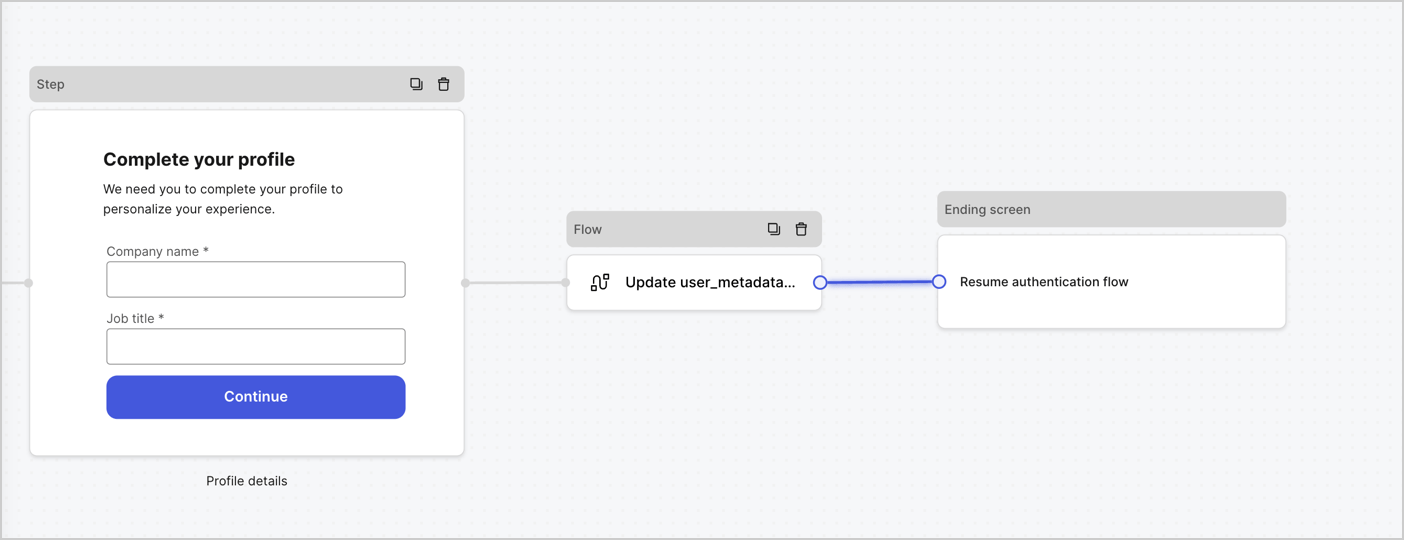
4. Link the **Flow** node to the **Step** and **Ending Screen** nodes as pictured below.
5. Select **Publish** to save.
<Frame>
  <img src="https://mintcdn.com/docs-staging-fix-docs-5546-update-db-search/ZpefpeFKNNxhegA4/docs/images/cdy7uua7fh8z/5C91DaWn4LGtJT9BF87ssu/095171d0c452a287c44bfde12fd6d13f/link-nodes.png?fit=max&auto=format&n=ZpefpeFKNNxhegA4&q=85&s=b533940322ca9b9e7467f3198089b08f" alt="Dashboard > Actions > Forms > Form" data-og-width="1404" width="1404" data-og-height="540" height="540" data-path="docs/images/cdy7uua7fh8z/5C91DaWn4LGtJT9BF87ssu/095171d0c452a287c44bfde12fd6d13f/link-nodes.png" data-optimize="true" data-opv="3" srcset="https://mintcdn.com/docs-staging-fix-docs-5546-update-db-search/ZpefpeFKNNxhegA4/docs/images/cdy7uua7fh8z/5C91DaWn4LGtJT9BF87ssu/095171d0c452a287c44bfde12fd6d13f/link-nodes.png?w=280&fit=max&auto=format&n=ZpefpeFKNNxhegA4&q=85&s=eae365d3f6a0e47ec79be8a13cfeafad 280w, https://mintcdn.com/docs-staging-fix-docs-5546-update-db-search/ZpefpeFKNNxhegA4/docs/images/cdy7uua7fh8z/5C91DaWn4LGtJT9BF87ssu/095171d0c452a287c44bfde12fd6d13f/link-nodes.png?w=560&fit=max&auto=format&n=ZpefpeFKNNxhegA4&q=85&s=43e6b8264b85c270fc96c2f8c384f9ea 560w, https://mintcdn.com/docs-staging-fix-docs-5546-update-db-search/ZpefpeFKNNxhegA4/docs/images/cdy7uua7fh8z/5C91DaWn4LGtJT9BF87ssu/095171d0c452a287c44bfde12fd6d13f/link-nodes.png?w=840&fit=max&auto=format&n=ZpefpeFKNNxhegA4&q=85&s=0d5dc7d5f76e43c240bf492e9510a2af 840w, https://mintcdn.com/docs-staging-fix-docs-5546-update-db-search/ZpefpeFKNNxhegA4/docs/images/cdy7uua7fh8z/5C91DaWn4LGtJT9BF87ssu/095171d0c452a287c44bfde12fd6d13f/link-nodes.png?w=1100&fit=max&auto=format&n=ZpefpeFKNNxhegA4&q=85&s=76eda9592750bdc06b80b0806435e599 1100w, https://mintcdn.com/docs-staging-fix-docs-5546-update-db-search/ZpefpeFKNNxhegA4/docs/images/cdy7uua7fh8z/5C91DaWn4LGtJT9BF87ssu/095171d0c452a287c44bfde12fd6d13f/link-nodes.png?w=1650&fit=max&auto=format&n=ZpefpeFKNNxhegA4&q=85&s=e1a288528609f25dfb390ad7ebd47503 1650w, https://mintcdn.com/docs-staging-fix-docs-5546-update-db-search/ZpefpeFKNNxhegA4/docs/images/cdy7uua7fh8z/5C91DaWn4LGtJT9BF87ssu/095171d0c452a287c44bfde12fd6d13f/link-nodes.png?w=2500&fit=max&auto=format&n=ZpefpeFKNNxhegA4&q=85&s=3bdb692ffc370520859618911cb1dfc8 2500w" />
</Frame>

Add an Auth0 Update user action to the flow by following these steps:

1. Select the **Update user\_metadata** flow, then select the **Edit Flow** to open the Flow editor in a new tab.
2. Below the **Start** action, select the **+** icon to add an **Update user** action. Complete the fields below, then select **Save** to continue.

   * **Connection**: Select from the dropdown the Vault connection to your M2M application.

   * **User ID**: Enter `{{context.user.user_id}}`.

   * **Body**: Copy and paste the following code to update the user\_metadata with `job_title` and `company_name` properties.

     ```json lines theme={null}
     {
        "user_metadata": {
           "job_title": "{{fields.job_title}}",
           "company_name": "{{fields.company_name}}"
        }
     }
     ```

   * Select **Save**.
3. Select **Publish** to save.

<Frame>
  <img src="https://mintcdn.com/docs-staging-fix-docs-5546-update-db-search/sVORoaGQ-jxplhx0/docs/images/cdy7uua7fh8z/65Jx4W5oIZJyyvA8z4HqIx/0661b1a8ca6361c54fc4fef07ba59f0b/update-user.png?fit=max&auto=format&n=sVORoaGQ-jxplhx0&q=85&s=a20c136ec313a2f80d576115c11e6fab" alt="Dashboard > Actions > Forms > Flows" data-og-width="1404" width="1404" data-og-height="244" height="244" data-path="docs/images/cdy7uua7fh8z/65Jx4W5oIZJyyvA8z4HqIx/0661b1a8ca6361c54fc4fef07ba59f0b/update-user.png" data-optimize="true" data-opv="3" srcset="https://mintcdn.com/docs-staging-fix-docs-5546-update-db-search/sVORoaGQ-jxplhx0/docs/images/cdy7uua7fh8z/65Jx4W5oIZJyyvA8z4HqIx/0661b1a8ca6361c54fc4fef07ba59f0b/update-user.png?w=280&fit=max&auto=format&n=sVORoaGQ-jxplhx0&q=85&s=a57c13724d4d9e0d1f0e83415d62d5c3 280w, https://mintcdn.com/docs-staging-fix-docs-5546-update-db-search/sVORoaGQ-jxplhx0/docs/images/cdy7uua7fh8z/65Jx4W5oIZJyyvA8z4HqIx/0661b1a8ca6361c54fc4fef07ba59f0b/update-user.png?w=560&fit=max&auto=format&n=sVORoaGQ-jxplhx0&q=85&s=4725a902dc4666ec501c6101f25afaec 560w, https://mintcdn.com/docs-staging-fix-docs-5546-update-db-search/sVORoaGQ-jxplhx0/docs/images/cdy7uua7fh8z/65Jx4W5oIZJyyvA8z4HqIx/0661b1a8ca6361c54fc4fef07ba59f0b/update-user.png?w=840&fit=max&auto=format&n=sVORoaGQ-jxplhx0&q=85&s=60c08708eb54027e76d83c5967aa76c5 840w, https://mintcdn.com/docs-staging-fix-docs-5546-update-db-search/sVORoaGQ-jxplhx0/docs/images/cdy7uua7fh8z/65Jx4W5oIZJyyvA8z4HqIx/0661b1a8ca6361c54fc4fef07ba59f0b/update-user.png?w=1100&fit=max&auto=format&n=sVORoaGQ-jxplhx0&q=85&s=6dbc0c4e9ba7ecf5f91dd64b27344342 1100w, https://mintcdn.com/docs-staging-fix-docs-5546-update-db-search/sVORoaGQ-jxplhx0/docs/images/cdy7uua7fh8z/65Jx4W5oIZJyyvA8z4HqIx/0661b1a8ca6361c54fc4fef07ba59f0b/update-user.png?w=1650&fit=max&auto=format&n=sVORoaGQ-jxplhx0&q=85&s=d34d50ec44821563923351c1332d19c7 1650w, https://mintcdn.com/docs-staging-fix-docs-5546-update-db-search/sVORoaGQ-jxplhx0/docs/images/cdy7uua7fh8z/65Jx4W5oIZJyyvA8z4HqIx/0661b1a8ca6361c54fc4fef07ba59f0b/update-user.png?w=2500&fit=max&auto=format&n=sVORoaGQ-jxplhx0&q=85&s=dcd91922b4b00de0ffb56c2ed1a61e56 2500w" />
</Frame>

### Retrieve the form render code

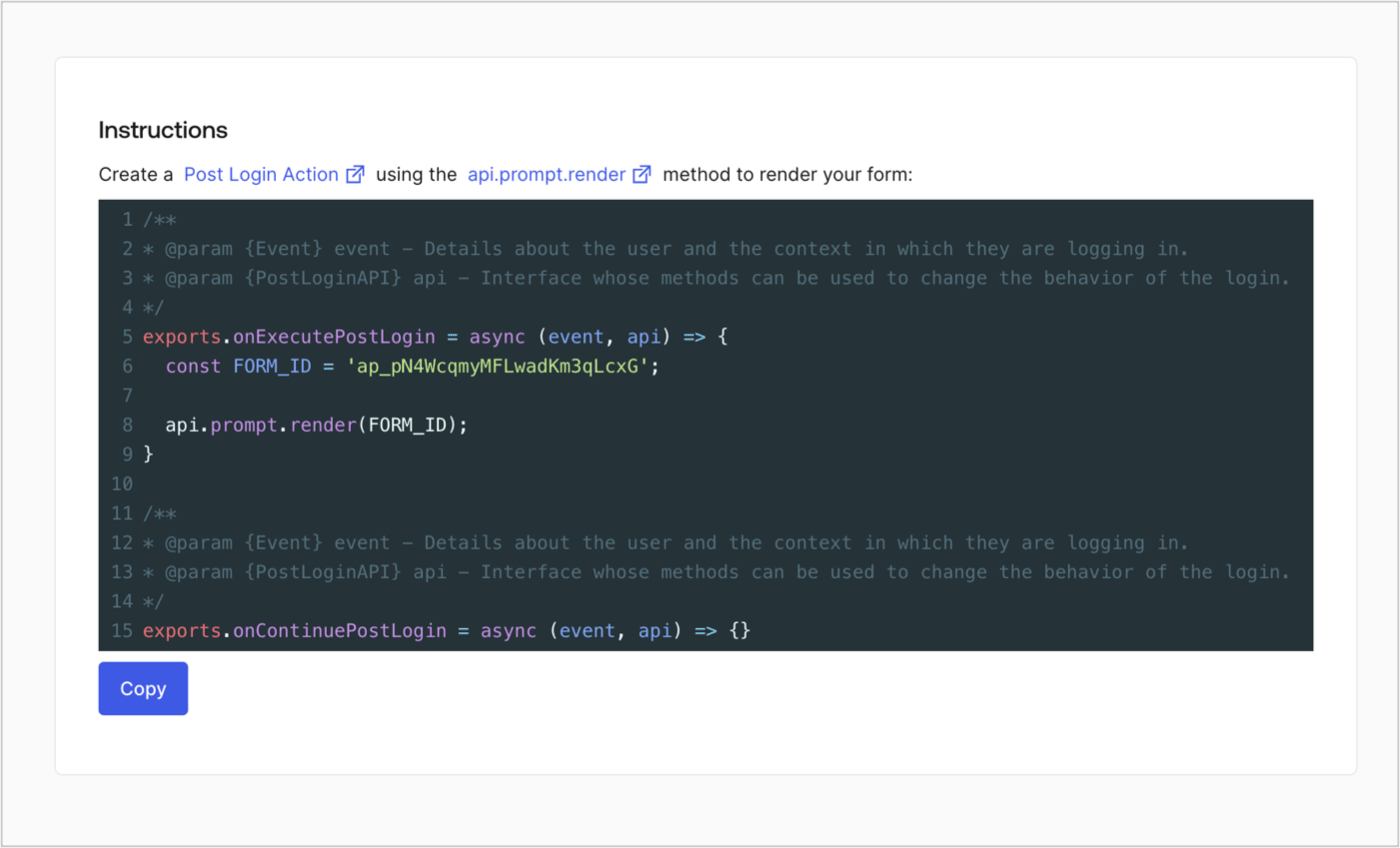
Retrieve the form render code to visually render the form with a custom Post Login Action by following these steps:

* From the Form editor, select **`<> Render`**.
* Select **Copy**.
<Frame>
  <img src="https://mintcdn.com/docs-staging-fix-docs-5546-update-db-search/PJ6jT6RrSeutZDYB/docs/images/cdy7uua7fh8z/2EIUzc539sq9lwoTKbjoJv/496a864c0fc44a782c9cadca119dbfb0/embed.png?fit=max&auto=format&n=PJ6jT6RrSeutZDYB&q=85&s=7d2955d3df37b190be9c5c67c8d3a8bc" alt="Dashboard > Actions > Forms > Form > Embed" data-og-width="1400" width="1400" data-og-height="848" height="848" data-path="docs/images/cdy7uua7fh8z/2EIUzc539sq9lwoTKbjoJv/496a864c0fc44a782c9cadca119dbfb0/embed.png" data-optimize="true" data-opv="3" srcset="https://mintcdn.com/docs-staging-fix-docs-5546-update-db-search/PJ6jT6RrSeutZDYB/docs/images/cdy7uua7fh8z/2EIUzc539sq9lwoTKbjoJv/496a864c0fc44a782c9cadca119dbfb0/embed.png?w=280&fit=max&auto=format&n=PJ6jT6RrSeutZDYB&q=85&s=b41953eea33e4171ddf631d7dbf90fb4 280w, https://mintcdn.com/docs-staging-fix-docs-5546-update-db-search/PJ6jT6RrSeutZDYB/docs/images/cdy7uua7fh8z/2EIUzc539sq9lwoTKbjoJv/496a864c0fc44a782c9cadca119dbfb0/embed.png?w=560&fit=max&auto=format&n=PJ6jT6RrSeutZDYB&q=85&s=26f7c4e9c2771682c9329d9e1fdd077f 560w, https://mintcdn.com/docs-staging-fix-docs-5546-update-db-search/PJ6jT6RrSeutZDYB/docs/images/cdy7uua7fh8z/2EIUzc539sq9lwoTKbjoJv/496a864c0fc44a782c9cadca119dbfb0/embed.png?w=840&fit=max&auto=format&n=PJ6jT6RrSeutZDYB&q=85&s=51bfd3b08f2615abdfce03d11bdf50a9 840w, https://mintcdn.com/docs-staging-fix-docs-5546-update-db-search/PJ6jT6RrSeutZDYB/docs/images/cdy7uua7fh8z/2EIUzc539sq9lwoTKbjoJv/496a864c0fc44a782c9cadca119dbfb0/embed.png?w=1100&fit=max&auto=format&n=PJ6jT6RrSeutZDYB&q=85&s=470118566ed49def3fa27a8f154001af 1100w, https://mintcdn.com/docs-staging-fix-docs-5546-update-db-search/PJ6jT6RrSeutZDYB/docs/images/cdy7uua7fh8z/2EIUzc539sq9lwoTKbjoJv/496a864c0fc44a782c9cadca119dbfb0/embed.png?w=1650&fit=max&auto=format&n=PJ6jT6RrSeutZDYB&q=85&s=e77c8d79c7db83736e0c6b336092bc07 1650w, https://mintcdn.com/docs-staging-fix-docs-5546-update-db-search/PJ6jT6RrSeutZDYB/docs/images/cdy7uua7fh8z/2EIUzc539sq9lwoTKbjoJv/496a864c0fc44a782c9cadca119dbfb0/embed.png?w=2500&fit=max&auto=format&n=PJ6jT6RrSeutZDYB&q=85&s=c979c9eb1be38be1fb6b93cf55b05b4b 2500w" />
</Frame>

## Create a Post Login Action

Create a post-login Action to render your form by following these steps:

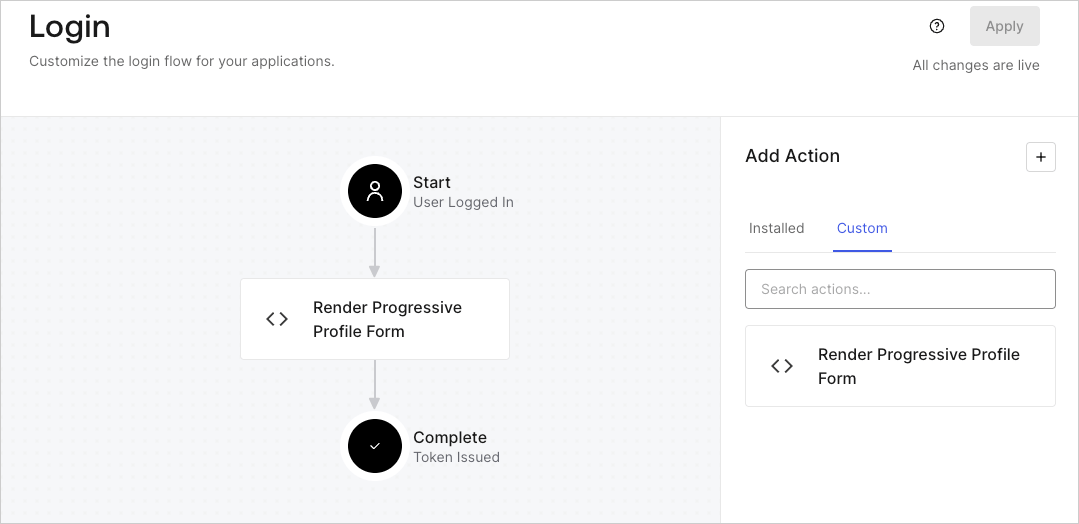
1. Navigate to **Auth0 Dashboard > Actions > Flows > Login.**
2. Select the **+** icon and select **Build from scratch**:

   * **Name**: Enter `Render Progressive Profile Form`.
   * **Trigger**: Select `Login / Post Login`.
   * **Runtime**: Select the recommended version.
3. Select **Create**.

To configure the post-login Action:

1. Delete the existing code from the Code editor.
2. Paste the form embed code into the Code editor.
3. Edit the code to define the conditional logic that will render the form.

   ```javascript lines theme={null}
   /**
   * @param {Event} event - Details about the user and the context in which they are logging in.
   * @param {PostLoginAPI} api - Interface whose methods can be used to change the behavior of the login.
   */
   exports.onExecutePostLogin = async (event, api) => {
     const FORM_ID = 'REPLACE_WITH_YOUR_FORM_ID';

     if (
       event.stats.logins_count > 2 &&
       !event.user.user_metadata.company_name &&
       !event.user.user_metadata.job_title
     ) {
       api.prompt.render(FORM_ID);
     }
   }

   exports.onContinuePostLogin = async (event, api) => { }
   ```

   <Callout icon="file-lines" color="#0EA5E9" iconType="regular">
     The example code above will render the form when a user has a login count > 2 and is missing the user metadata company\_name and job\_title properties.
   </Callout>
4. Select **Deploy.**
5. Drag and Drop the **Render Progressive Profile Form** Action to the **Login** flow.
   <Frame>
     <img src="https://mintcdn.com/docs-staging-fix-docs-5546-update-db-search/Q1rMPxXnOSBugn0w/docs/images/cdy7uua7fh8z/1QjjZdpTqTxx012UDN4xk9/99fba5ef4068a5688f1762eea7f42976/renderprogessiveprofile.png?fit=max&auto=format&n=Q1rMPxXnOSBugn0w&q=85&s=e35395aef96cf0cdb7c928277491ffcf" alt="Dashboard > Forms > Use Cases Progressive Profile Login Action" data-og-width="1079" width="1079" data-og-height="524" height="524" data-path="docs/images/cdy7uua7fh8z/1QjjZdpTqTxx012UDN4xk9/99fba5ef4068a5688f1762eea7f42976/renderprogessiveprofile.png" data-optimize="true" data-opv="3" srcset="https://mintcdn.com/docs-staging-fix-docs-5546-update-db-search/Q1rMPxXnOSBugn0w/docs/images/cdy7uua7fh8z/1QjjZdpTqTxx012UDN4xk9/99fba5ef4068a5688f1762eea7f42976/renderprogessiveprofile.png?w=280&fit=max&auto=format&n=Q1rMPxXnOSBugn0w&q=85&s=91add07b0c4773ba3a522bdb16885804 280w, https://mintcdn.com/docs-staging-fix-docs-5546-update-db-search/Q1rMPxXnOSBugn0w/docs/images/cdy7uua7fh8z/1QjjZdpTqTxx012UDN4xk9/99fba5ef4068a5688f1762eea7f42976/renderprogessiveprofile.png?w=560&fit=max&auto=format&n=Q1rMPxXnOSBugn0w&q=85&s=a6d46a4c6d40342db832884b7541f6ed 560w, https://mintcdn.com/docs-staging-fix-docs-5546-update-db-search/Q1rMPxXnOSBugn0w/docs/images/cdy7uua7fh8z/1QjjZdpTqTxx012UDN4xk9/99fba5ef4068a5688f1762eea7f42976/renderprogessiveprofile.png?w=840&fit=max&auto=format&n=Q1rMPxXnOSBugn0w&q=85&s=b908199975d0250795ae0f3fde453b4a 840w, https://mintcdn.com/docs-staging-fix-docs-5546-update-db-search/Q1rMPxXnOSBugn0w/docs/images/cdy7uua7fh8z/1QjjZdpTqTxx012UDN4xk9/99fba5ef4068a5688f1762eea7f42976/renderprogessiveprofile.png?w=1100&fit=max&auto=format&n=Q1rMPxXnOSBugn0w&q=85&s=ce722de7f1601f051ee748999048e906 1100w, https://mintcdn.com/docs-staging-fix-docs-5546-update-db-search/Q1rMPxXnOSBugn0w/docs/images/cdy7uua7fh8z/1QjjZdpTqTxx012UDN4xk9/99fba5ef4068a5688f1762eea7f42976/renderprogessiveprofile.png?w=1650&fit=max&auto=format&n=Q1rMPxXnOSBugn0w&q=85&s=e2e28a9ccb2076144658d8745dab9347 1650w, https://mintcdn.com/docs-staging-fix-docs-5546-update-db-search/Q1rMPxXnOSBugn0w/docs/images/cdy7uua7fh8z/1QjjZdpTqTxx012UDN4xk9/99fba5ef4068a5688f1762eea7f42976/renderprogessiveprofile.png?w=2500&fit=max&auto=format&n=Q1rMPxXnOSBugn0w&q=85&s=61cf75d34f9a5a0106edbc2acabbc430 2500w" />
   </Frame>
6. Select **Apply**.

### Test implementation

Test the implementation by following these steps:

1. Log in with an existing user whose login count is greater than 2 and their `user_metadata` attributes `company_name` and `job_title` have no values.
2. The post-login action in the Login flow will render the form and prompt for the information.
3. Select **Auth0 Dashboard > User Management > Users,** locate the user and verify that the `user_metadata` attributes `company_name` and `job_title` contain information.
